How to make a meme
With MemeMarkup, a meme takes about a minute: pick a picture, add your words, download. It all happens in your browser, with nothing to install and no account needed.
Open the meme generator1Pick a template
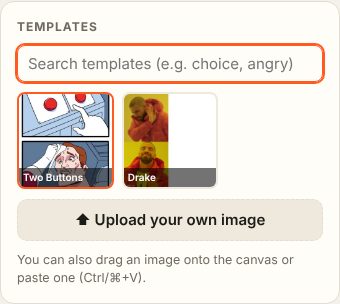
Start with one of the templates in the Templates panel. The most popular ones are listed first, and the ones you used recently sit on top. Don’t know the meme’s name? Search for what it’s about instead: choice, angry, jealous, prefer. Every template is tagged with what it means. Browse all shows every template, sorted by popularity, newest or A–Z.
Want to use your own picture? Click Upload your own image, drag a picture onto the editor, or paste one with Ctrl+V (⌘+V on a Mac).
2Write your captions
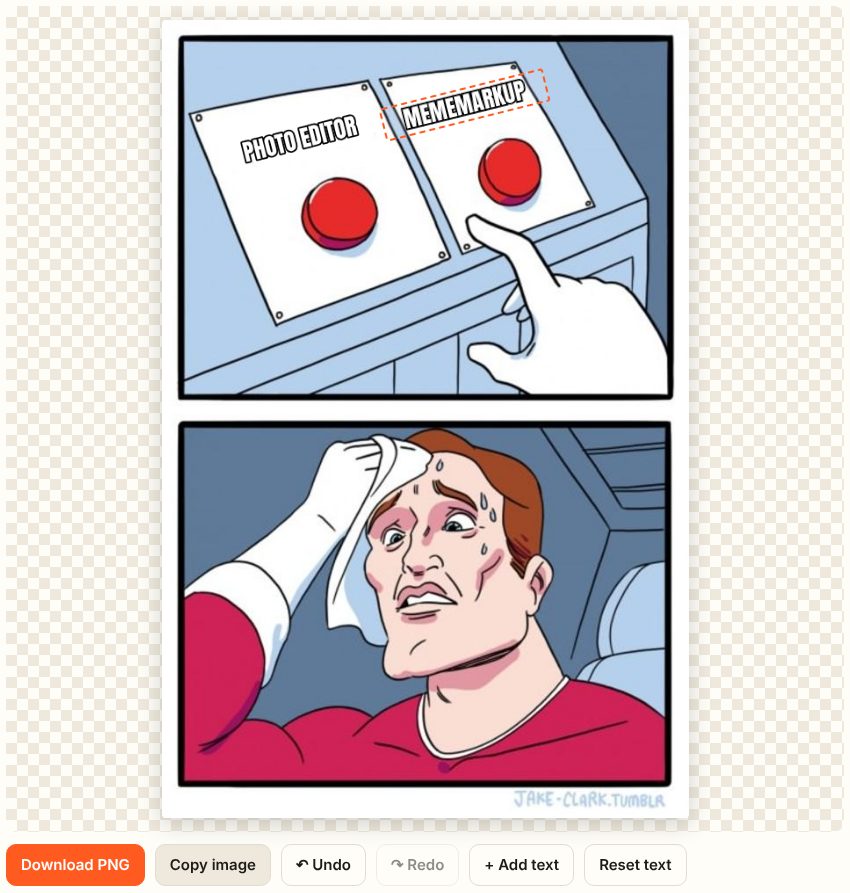
Double-click a caption on the image and type. Press Enter when you’re done, or Shift+Enter for a new line. You can also type in the Text panel next to the image. Both stay in sync.
Need another caption? Click + Add text. It starts with the same style as the caption you had selected. To copy a caption, right-click it and choose Duplicate (or press Ctrl+D).
3Move, resize and rotate
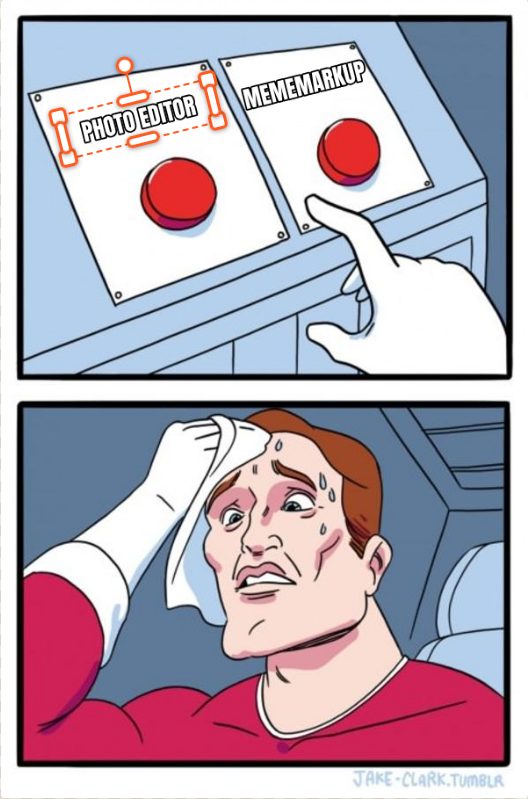
Drag a caption to move it. Once it’s selected, use its handles:
- Corners resize the box, and the text scales with it.
- Left and right sides change how wide the text can run before it wraps to a new line.
- Top and bottom set the box’s height. Double-click one to go back to automatic.
- The round handle on top rotates the caption. Hold Shift to snap to 15° steps; double-click it to straighten.
The arrow keys nudge the selected caption a little at a time (hold Shift for bigger steps).
4Style your text
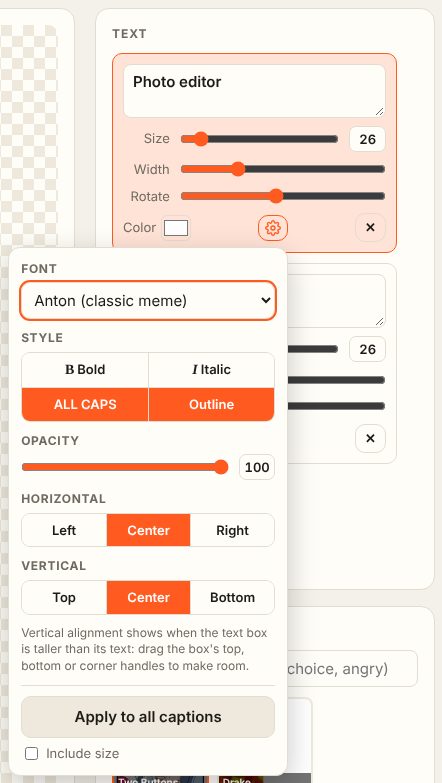
Every caption has a Size, Width and Rotate slider and a Color picker. Click its gear for more:
- Font: eleven choices, from the classic meme font (Anton) to comic, handwritten, script and typewriter styles.
- Bold, Italic, ALL CAPS and the black Outline that keeps white text readable on any picture.
- Shadow, a soft drop shadow, and Background, a box behind the text in any color, solid or see-through. Both help on busy pictures.
- Opacity, from 100 (solid) down to 0 (invisible).
- Horizontal and vertical alignment inside the caption’s box.
Happy with one caption’s look? Apply to all captions copies it to the others in one click. Tick Include size to copy the size too.
5Download, copy or share
Click Download PNG to save your meme, or Copy image and paste it straight into a chat, email or post. On a phone, Share sends it straight to an app. Made a mistake? Undo (Ctrl+Z) and Redo have you covered, and Reset text puts the template’s captions back.
Tips for a meme that lands
- Keep it short. Most great memes have just a few words per caption, so people get it in a second, even on a small phone screen.
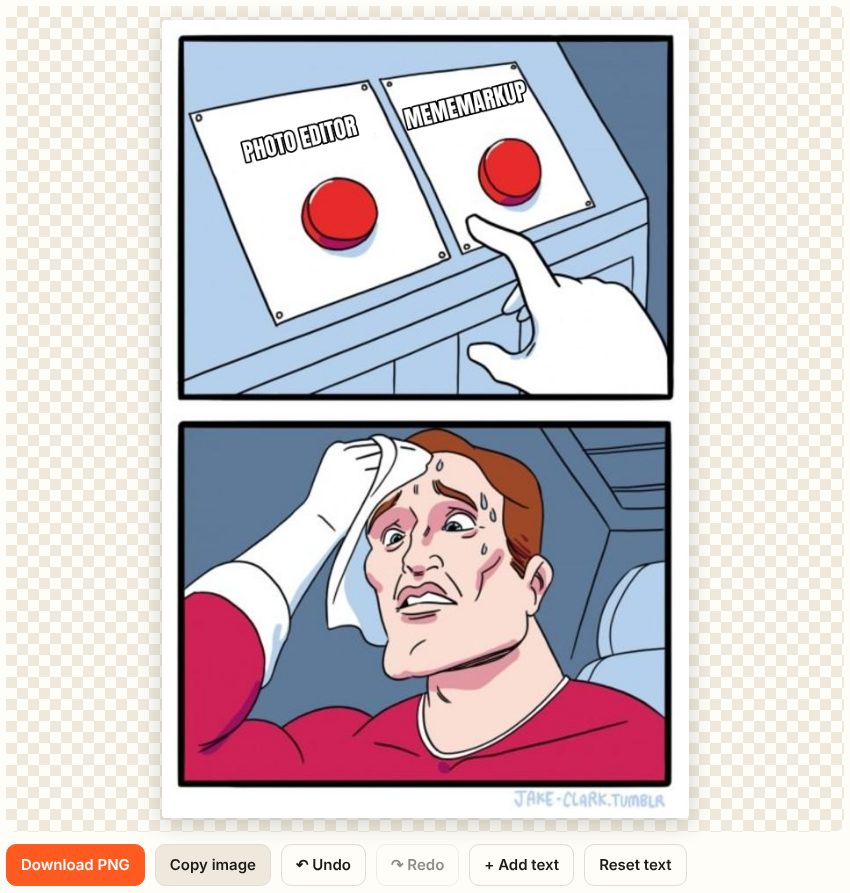
- Match the template to the joke. Each template has a well-known meaning: Drake for “this, not that”, Two Buttons for a hard choice, Distracted Boyfriend for temptation. Using it the way people expect does half the work. Every template’s page explains what it’s used for.
- Put text where it belongs. Label the things in the picture (a button, a person, a car) and keep text off faces.
- Make it readable. White text with a black outline works on almost any picture. Check how it looks on your phone before you share it.
- Know the classic layout. Top text sets things up, bottom text delivers the punchline.
- Try a caption bar for longer captions. Caption bar adds a white (or black) strip above the picture for plain text, like a social media post. It grows as you type and keeps the whole picture visible, which suits reaction pictures and sentences too long for the image itself.
Keyboard shortcuts
Click a caption on the image first, then:
| Do this | Press |
|---|---|
| Type on the image | Enter or F2 (or double-click the caption) |
| Finish typing / new line | Enter / Shift+Enter |
| Move the caption | Arrow keys (Shift for bigger steps) |
| Bigger / smaller text | + / − |
| Rotate | [ / ] (Shift for 15° steps) |
| Duplicate the caption | Ctrl+D (⌘+D on a Mac) |
| Remove the caption | Delete |
| Undo / redo | Ctrl+Z / Ctrl+Y (⌘+Z / ⌘+Shift+Z on a Mac) |
On a phone
Everything works the same on a phone or tablet: tap a caption to select it, tap it again to type, and drag to move it. Tap Share to send your meme straight to a chat or app, or save it to your photos or downloads.
Questions? See the FAQ.